Bytebot: Self-Host Your Own AI Desktop Agent (Complete Docker Guide)
Bytebot: Self-Host Your Own AI Desktop Agent 🦞
What is it? Bytebot is an open-source (Apache 2.0) AI desktop agent that runs inside a containerized Linux desktop environment. You give it tasks in natural language, and it uses its own virtual computer — complete with Firefox, VS Code, a file system, and a mouse cursor — to get things done.
Why it's trending: Bytebot hit 10,900+ GitHub stars in just months because it solves a real problem: AI agents are great at generating text, but terrible at actually doing things in real applications. By giving the AI its own full desktop environment, Bytebot can browse websites, download files, fill forms, run scripts, and interact with software just like a human would — all from a self-hosted Docker stack.
📋 Prerequisites
Before we start, make sure you have:
- A Linux server (or any machine with Docker) — minimum 4GB RAM, 2 CPU cores, 20GB disk
- Docker and Docker Compose (v2+) installed
- An AI API key from one of the supported providers:
- Anthropic Claude (recommended — best for computer use)
- OpenAI
- Google Gemini
- Git to clone the repository
🧠 Architecture Overview
Bytebot is built from 4 Docker containers working together:
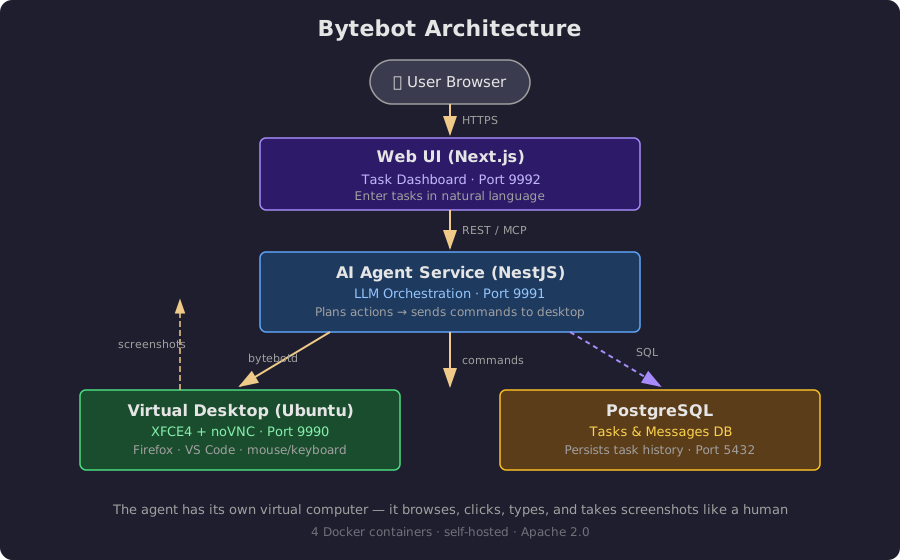
- Virtual Desktop — Ubuntu 22.04 with XFCE4, Firefox, VS Code, noVNC (port 9990)
- AI Agent — NestJS backend that orchestrates tasks via LLM (port 9991)
- Web UI — Next.js 15 dashboard for task management (port 9992)
- PostgreSQL — Task and message persistence
The flow: You describe a task → Agent plans actions → Sends commands to the desktop daemon → Desktop executes mouse clicks, keystrokes, screenshots → Results stream back to the UI.
🚀 Step-by-Step Deployment
Step 1: Clone the Repository
git clone https://github.com/bytebot-ai/bytebot.git
cd bytebot
Step 2: Configure Your AI Provider
Create a .env file in the docker/ directory:
cd docker
nano .env
Add your API key(s). You only need one provider:
# Recommended: Anthropic Claude (Sonnet 4 or Opus works best)
ANTHROPIC_API_KEY=sk-ant-xxxxxxxxxxxxxxxxxxxxxxxxxxxxxxxx

# Alternative: OpenAI
OPENAI_API_KEY=sk-xxxxxxxxxxxxxxxxxxxxxxxxxxxxxxxx

# Alternative: Google Gemini
GEMINI_API_KEY=xxxxxxxxxxxxxxxxxxxxxxxxxxxxxxxx
Step 3: Start the Stack
Still inside the docker/ directory:
docker compose up -dThis will pull and start 4 containers:
bytebot-desktop— The virtual desktop (Ubuntu + XFCE + noVNC)bytebot-postgres— Database for tasksbytebot-agent— AI orchestration servicebytebot-ui— Web dashboard
Check that everything is running:
docker compose psExpected output:
NAME                IMAGE                                      STATUS   PORTS
bytebot-desktop     ghcr.io/bytebot-ai/bytebot-desktop:edge    Up       0.0.0.0:9990->9990/tcp
bytebot-postgres    postgres:16-alpine                          Up       0.0.0.0:5432->5432/tcp
bytebot-agent       ghcr.io/bytebot-ai/bytebot-agent:edge      Up       0.0.0.0:9991->9991/tcp
bytebot-ui          ghcr.io/bytebot-ai/bytebot-ui:edge         Up       0.0.0.0:9992->9992/tcp
Step 4: Access the Dashboard
Open your browser and navigate to:
http://<your-server-ip>:9992You'll see the Bytebot web interface.
Step 5: Try Your First Task
In the chat interface, type something like:
"Go to Wikipedia and create a summary of quantum computing"Watch as Bytebot's AI plans the actions, opens Firefox, navigates to Wikipedia, reads the page, and returns a summary — all in real time through the live desktop viewer.
You can also click the Desktop tab to see the virtual desktop directly, or use Takeover Mode to control the desktop manually (useful for setting up credentials or installing software).
⚙️ Configuration Options
Using a Different AI Model
Bytebot works with multiple providers. The agent service auto-detects which API key you've configured. You can also set up LiteLLM to proxy through 100+ providers including local models via Ollama.
Persistent Desktop Environment
The desktop container is persistent by default — install software once and it stays. To customize the desktop:
# custom-desktop.Dockerfile
FROM ghcr.io/bytebot-ai/bytebot-desktop:edge
RUN apt-get update && apt-get install -y \
    libreoffice \
    gimp \
    curl
Then rebuild:
docker compose build bytebot-desktop
docker compose up -d
Resource Tuning
For production use, adjust these in docker-compose.yml:
services:
bytebot-desktop:
  shm_size: "2g"  # Increase for memory-heavy tasks
  deploy:
    resources:
      limits:
        memory: 4g
        cpus: "2"
🔐 Security Notes
- By default, services are exposed on
localhost— if deploying remotely, use a reverse proxy with HTTPS (Caddy, Nginx Proxy Manager) - Consider adding authentication via OIDC/SSO or a proxy-level auth
- API keys are stored in the
.envfile — keep it outside version control - The desktop container runs isolated from your host system
💡 Real-World Use Cases
| Use Case | Example Task |
|---|---|
| Invoice Processing | "Download all invoices from our vendor portals and organize them into a folder" |
| Research | "Research the top 5 competitors in the AI monitoring space and create a comparison table" |
| Data Entry | "Log into the CRM, export the customer list, and update records in the ERP" |
| Testing | "Run the test suite in VS Code and report any failures with screenshots" |
| Document Processing | "Read these 5 PDF contracts and extract all payment terms and deadlines" |
📊 Compared to Alternatives
| Feature | Bytebot | Browser-only agents | Traditional RPA |
|---|---|---|---|
| Uses any desktop app | ✅ | ❌ | ✅ |
| Self-hosted | ✅ | ❌ (usually) | ❌ |
| Natural language | ✅ | ✅ | ❌ (scripting) |
| Open source | ✅ (Apache 2.0) | Varies | ❌ |
| Live desktop view | ✅ | ❌ | ✅ |
| API for programmatic control | ✅ | ✅ | ✅ |
🔗 Resources
- GitHub: https://github.com/bytebot-ai/bytebot
- Documentation: https://docs.bytebot.ai
- Website: https://bytebot.ai
- Discord: Join the community
✅ Verification Checklist
After deployment, verify everything works:
- All 4 containers show
Upstatus - Dashboard accessible at
http://<ip>:9992 - Desktop viewer loads (click the Desktop tab)
- AI task executes successfully
- noVNC connection on port 9990 works directly
Bytebot is open-source under the Apache 2.0 license. This guide was written on May 1, 2026 — check the GitHub repo for the latest updates.